Before you begin, please check your "Live Console" to make sure all events are listed under the "Waiting" tab. If any of the events are still listed under "Verify", please complete verifying your events before moving on.
Once confirmed, we are going to select the “Generate Planner” option at the top of the page.
Click the Generate button to move the events into the Daily Planner. The number of Verified and Events in Planner should be the same. Not Verified should be zero.
Now that we have generated the events, we use our 3 line menu to access our Daily Planner
The first step we recommend is to view your current starting time by clicking the “Edit Start Times” button:
From here you will see all the events listed on your current day you are working on, the current listed starting time under the “Event Setting” section. If you have a good projection of what you would like your starting times to be for specific events, go ahead and add these in now and save. If you are unsure, we recommend you add the earliest starting time available for all events.
Once your times are entered, select “Save Changes” and then “View Daily Planner”.
From this view, you will notice that on the left-hand side of the screen, all your courts are listed vertically. Every match that is scheduled to be played will appear spread out on the available courts. You will also notice under the times, a T: section and a W: section. The T stands for total matches to be played yet with the brackets starting during that time, and the W stands for waiting matches that cannot go directly to court.
If you are unhappy with the number of waiting matches, revisit the “Edit Starting Times” tab and adjust your brackets starting times until you are satisfied with the way the schedule looks. Repeat this process for all days of your tournament until you are satisfied with the schedule.
Once starting times are set, use the “List of Start Times” tab
The last step in the process is to email your players the starting times once you have reviewed and are sure the starting time are correct.
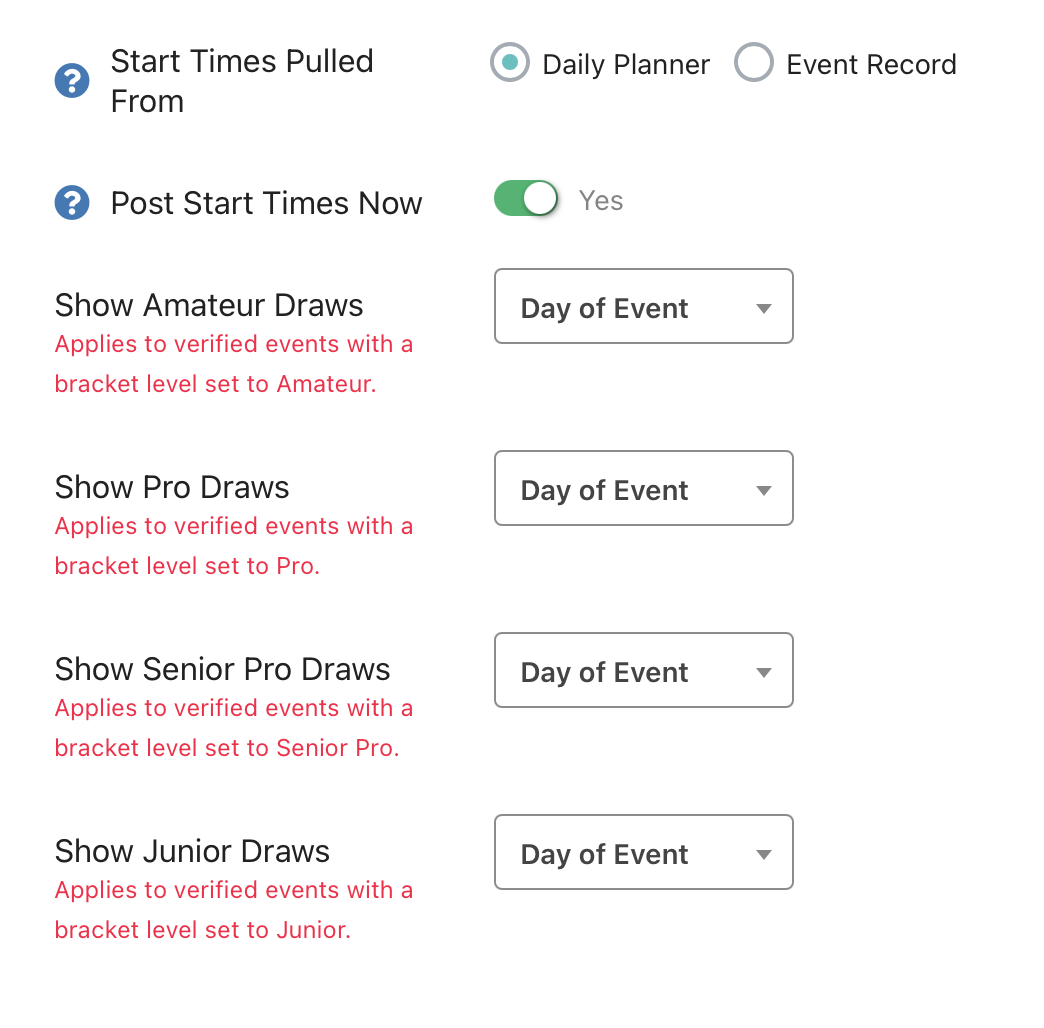
When you have emailed start times, also head to the tournament menu and select "edit tourney." Next, scroll down until you find the "show start times" button. Verify that you'd like the start times to be pulled from the daily planner or event record. If you pull start times from the daily planner, make sure the daily planner isn't accounting for one bracket ending before the next one starts. If that's the case, you may want to pull the start times from the event record if you have some overlap. The event record automatically updates each time you update your daily planner.
Additionally, slide the "post start times now" toggle switch to yes. This adds a link directly to start times on your tournament home page showing your registrants and viewers. Lastly, decide when your draws will be showed to players. Most tournaments do "day of event" but you are welcome to decide what is best for your event.
If you need to make any changes to an event, like adding a team or removing a team, please make sure you re-generate your daily planner, by following the "generate planner" instructions from above. Even if you adjust the playing format, or adjust start times from the "manage court counts and start times" screen, your daily planner will need to be re-generated.