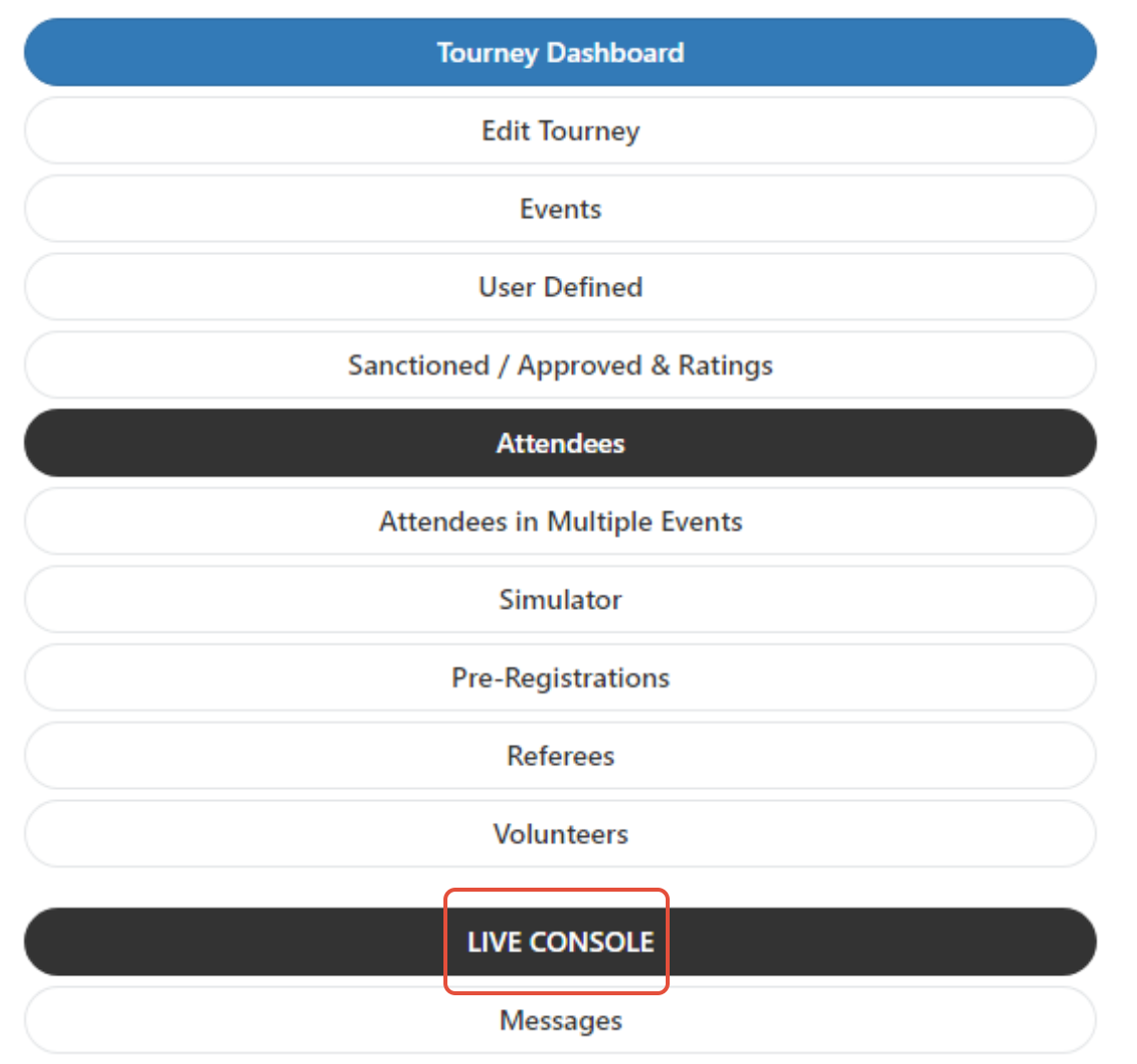
Once you are logged in to your tournament, use the 3-line menu to select the "Live Console" tab:
At the top of the "Live Console," you will see the court desk feature:

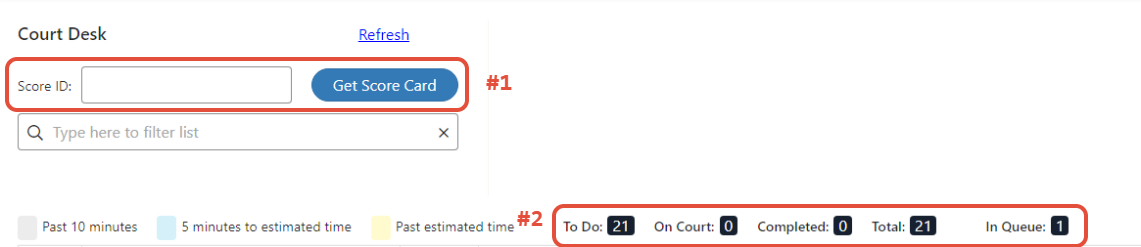
In Court Desk, you will see the following:
#1 - Once a match has finished, you can easily pull up the scorecard to enter the score but typing in the ID under the QR code on the scoresheet
#2 - This area indicates the number of matches:
- To Do (not yet on court)
- On Court
- Completed
- Total (on court + to do)
- In Queue (matches available for you to put on court)
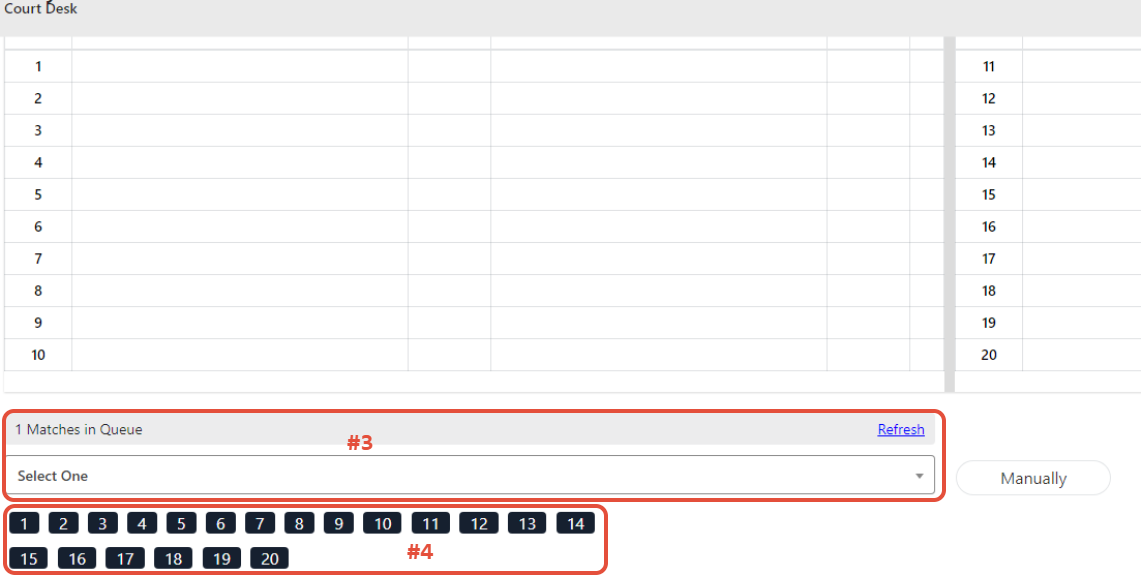
#3 - This area shows all matches available to be placed on court THAT HAVE BEEN PRINTED! If a match has NOT been printed, it will NOT show as ready to add to court.
#4 -Every available court will show in this section. Simply select the match from the drop down menu and select a court number to add that match to the court. If you are using text messaging, this action will send the text message to the players.
When you receive a completed scorecard, you can also elect to click on the match to bring up the match information to enter scores.
If you want the system to alert you when a next round match is available to be printed and assigned, be sure you turn on the "print next available" option from the event setup. If you want round robin matches to go round by round, be sure to also mark the "print round by round" option.
Below is an overview of the court desk operations as a whole along with a description of what each area means:
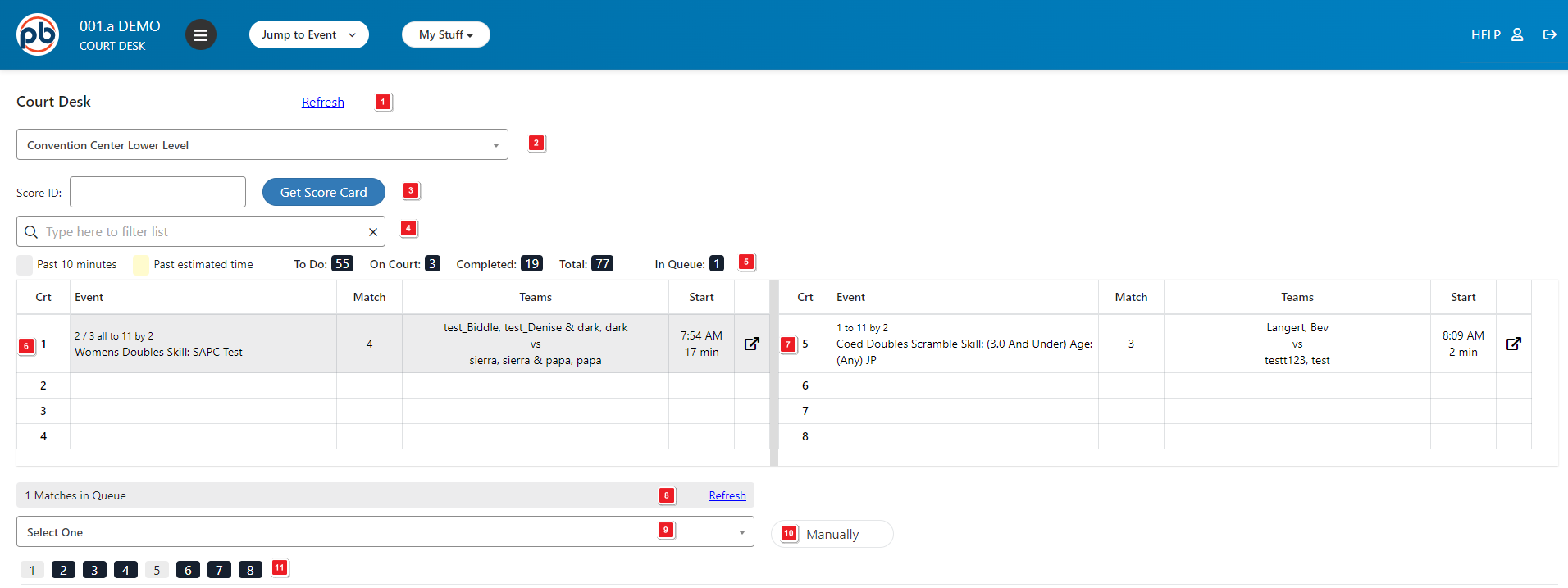
- Refresh – Click to show the most recent court desk matches.
- Venue – Select the venue.
- Score ID – May be used to manually retrieve a score card for any match.
- Filter List – For large tournament, use this to narrow down the list of event names that are shown on the screen
- Court Assignment Key
- Greyed out – More than 10 minutes on the court
- Yellow – On the court past the estimated match time.
- To Do – Number of matches remaining in the running queue
- On Court – Number of matches assigned to courts.
- Completed – Number of matches in the completed queue.
- Total – Total number of matches for the events in the running queue.
- In Queue – Matches in the Game Queue
- Match on Court – Details include the time on court. (Greyed out to indicate more than 10 minutes.
- Match on Court – Less than 10 minutes.
- Refresh – Click to refresh the Game Queue
- Select – Drop Down menu for selecting matches to assign to courts. Matches are listed in order of the time they entered the Game Queue
- Manually – Used to assign a game to a court that is not currently in the Game Queue
- Court Numbers – Select the Court Number after selecting the match in order to assign it to a court.
Once a game is assigned to a court, click on the game to enter a score. After the score is entered, the game will automatically be removed from the court and new score sheets may print.
Was this article helpful?
That’s Great!
Thank you for your feedback
Sorry! We couldn't be helpful
Thank you for your feedback
Feedback sent
We appreciate your effort and will try to fix the article