In the video above, scroll to the 1:16 min mark to view information on the print spooler. Or, continue reading the instructions below.
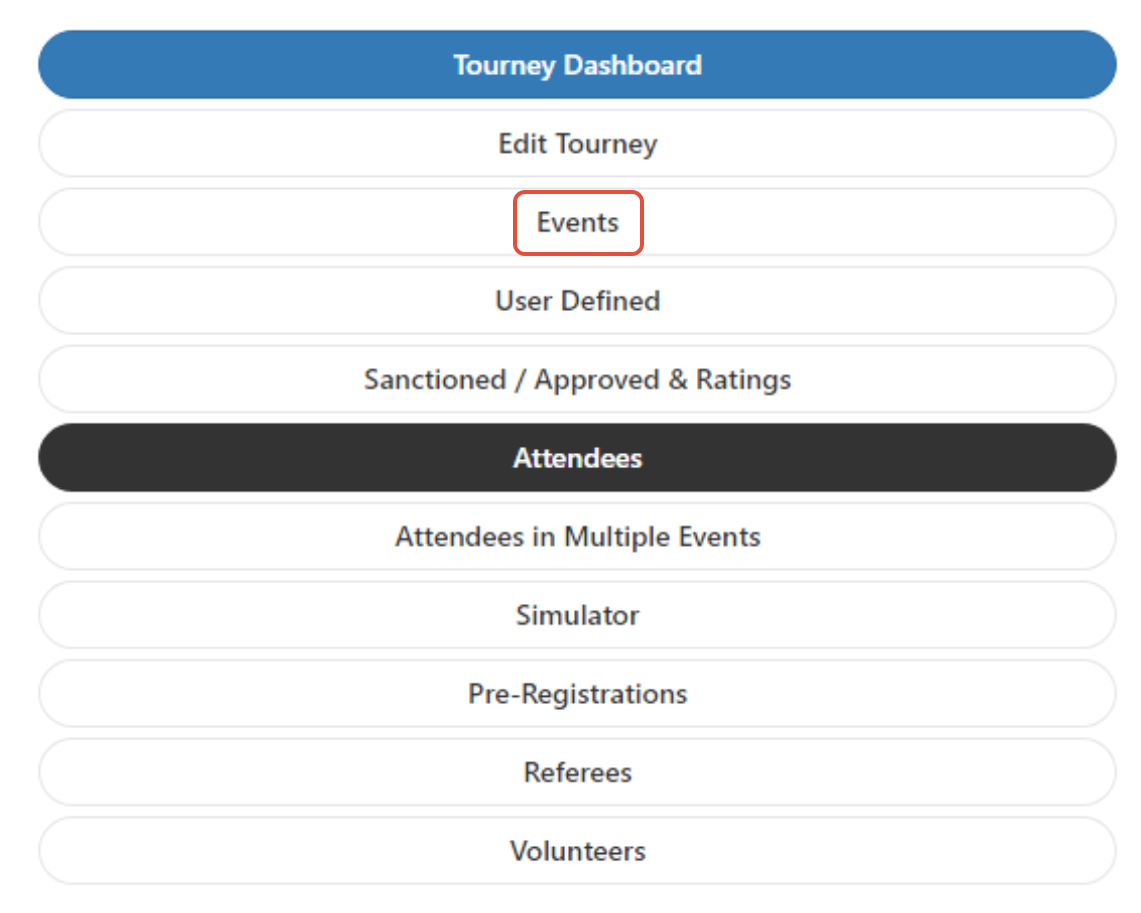
Once logged into your tournament, visit the 3-line menu and select the "Events" tab:
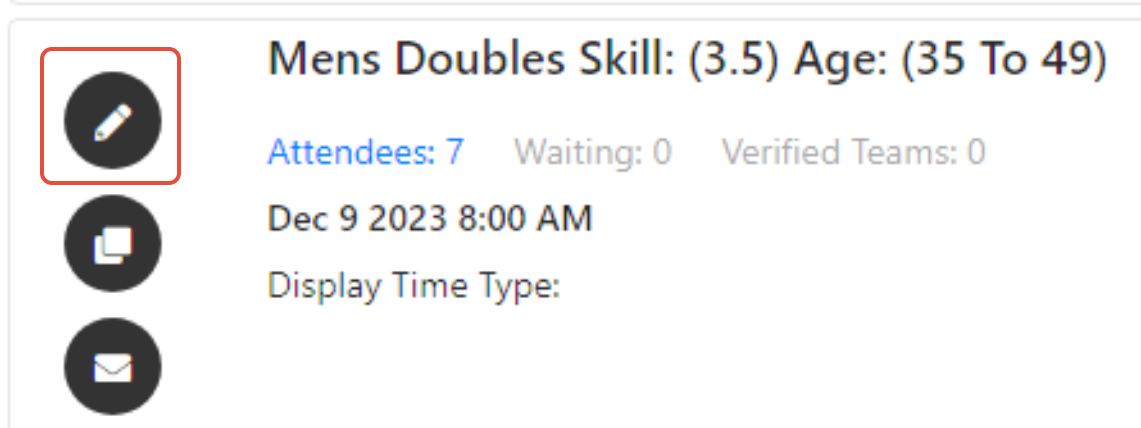
Select the "Edit Event" icon (pencil) on each of the events to adjust the Basic Info for the event.
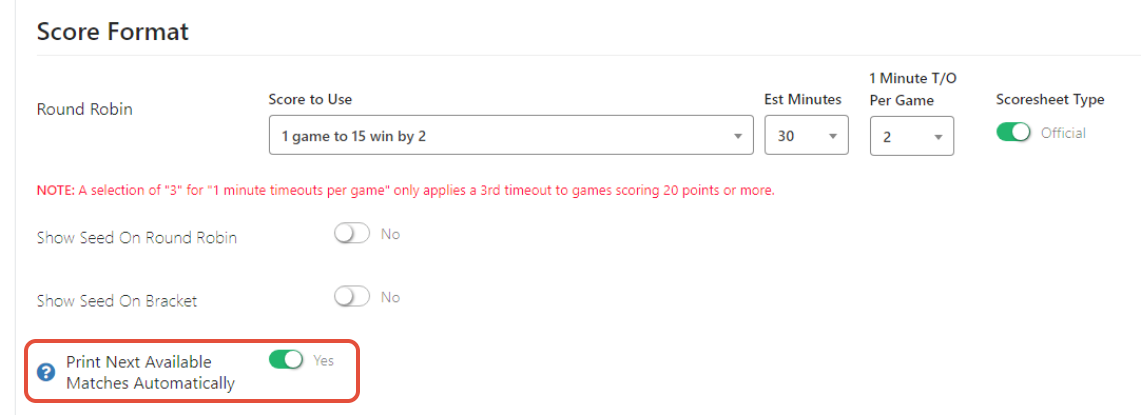
Once inside, scroll down to the section labeled "Score Format" and make sure the "Print Next Available Matches Automatically" is turned on.
During the Verification process through the Live Console, you will be asked this question again to verify. The selections you make during the event setup will carry over into this section.
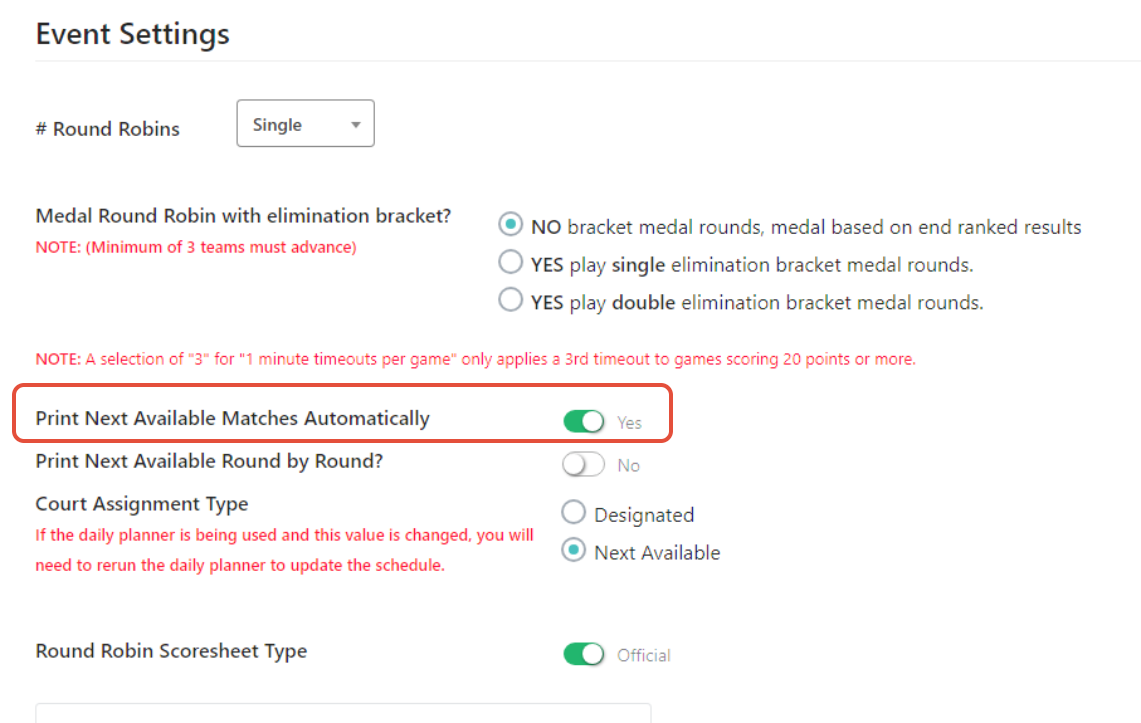
Be sure to print next available round by round if you want to go in order in a round robin. If you don't, the system will "jump around" and pull whatever match is first available. While this helps speed up play, it does make determining when someone will have a bye round near impossible to determine.
These are the only required steps for the event to communicate with the Spooler. If you want more information about how to download and configure the print spooler, please click here.
Was this article helpful?
That’s Great!
Thank you for your feedback
Sorry! We couldn't be helpful
Thank you for your feedback
Feedback sent
We appreciate your effort and will try to fix the article