A QR Code is a recommended device for the management of large tournaments if you are not using player score entry. It enables the following capabilities:
- A quick search for matches for score entry.
- An automated method for assigning the next available court and an available referee.
**Note, there is no specific brand of QR code reader that we recommend.
TABLE OF CONTENTS
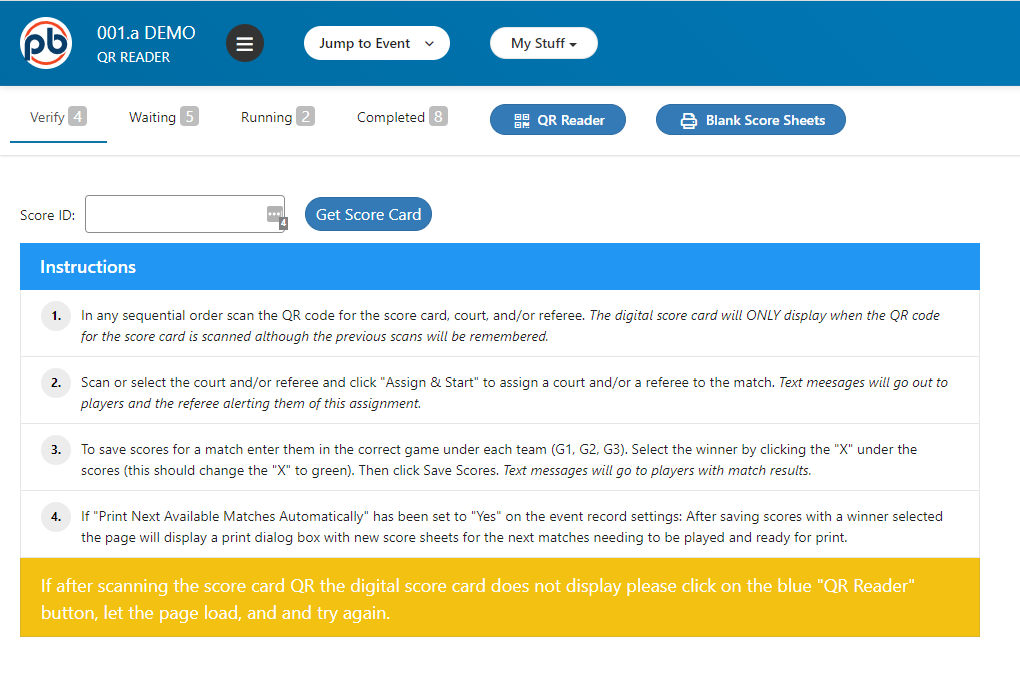
Click on the QR Reader button on the Live Console Screen:

QR Code Reader Score Entry
With the QR Code reader screen displayed, scan the QR code on the completed match score sheet. DO NOT POSITION THE CURSOR IN THE SCORE ID FIELD. JUST SCAN THE CODE. The score entry form for that match will appear. Enter the score and save it.
QR Reader Court and Referee Assignment
The QR code reader may be used to assign courts and referees for tournaments using the “Next Available Court” method for assigning courts.
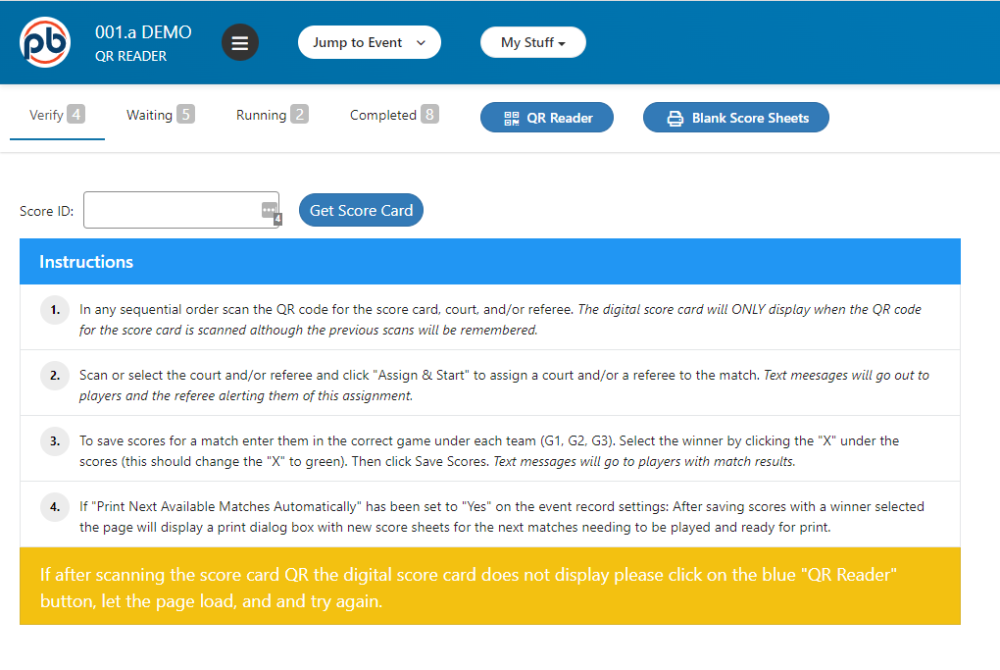
- With the QR Code reader screen displayed, scan the QR code on the blank score sheet for the next match. The score entry form for that match will appear.
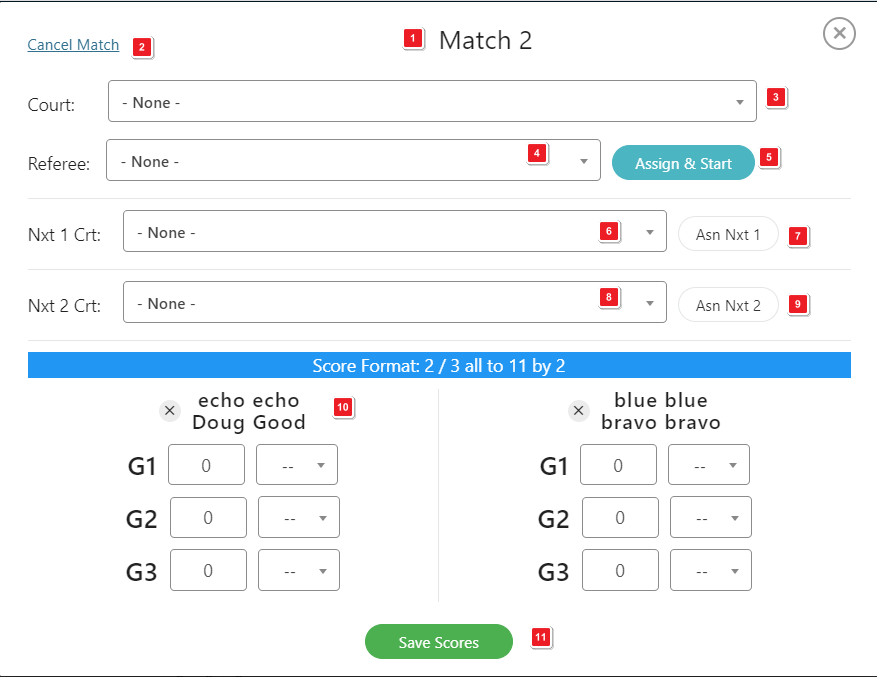
- Scan the QR Code for the court you to which you want to assign the match. That court number will show at the top of the score input screen. Number 4 on the image below.
- Scan the QR Code for the referee you want to use. The referee name will show at the top of the score input screen. Number 5 on the image below.
- Click the Assign and Start button. Number 6 on the image below.
Was this article helpful?
That’s Great!
Thank you for your feedback
Sorry! We couldn't be helpful
Thank you for your feedback
Feedback sent
We appreciate your effort and will try to fix the article