Once a skill level event has been created, it can easily be split into age groups using the Manage Splits option on the event sidebar menu. This is a powerful feature that allows Tournament Directors to create and modify age brackets before, during and after the registration period. When age splits are created either before or during the registration period, players will register into those age groups. Age splits are also used by the Planner Snapshot to create a potential schedule based on the expected number of players in each age group. Use the video above (scroll to about the 6:50min mark) or use the help doc below to help you understand how to manage your age splits.
TABLE OF CONTENTS
General Info
You should designate a starting age if you plan to use age splits. If the age for an event is set to Any, the starting age for the youngest group will be set to 5 years old.
If age splits are created after players have registered, either turn the waiting list service off for the tournament or set maximums for each age split if you want to keep players on the waiting list in the new age group. If maximums are not set and the waiting list service is on, eligible waiting list teams will be moved in as soon as you save the settings.
- Before Registration Opens – Age group splits can be created so that players can register by age within a specific skill level.
- During Registration – Age groups can be expanded or shrunk to modify the size of the bracket. Players will automatically be moved to the appropriate age group.
- After Registration Closes – Age groups can be created from any skill level event in order to split one event into multiple skill level/age group events or combine age groups into one event.
- Before Registration Opens – Using the Age group split functionality, Tournament Directors can create separate skill level/age group events. Once created, these events cannot be modified using the manage splits function.
Creating your First Age Split
Click on "Manage Splits"
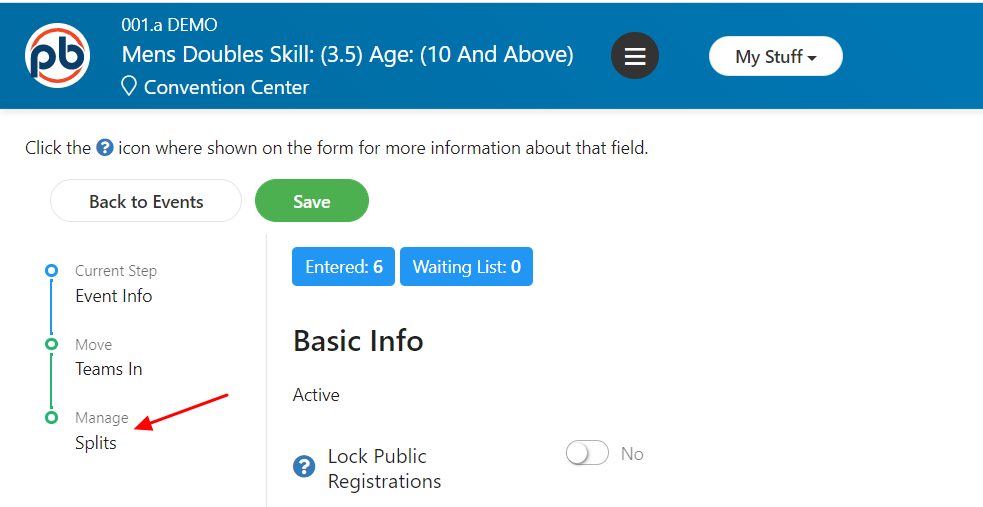
Selecting the Manage Splits option will bring you to this screen below. Click on "Add new split."
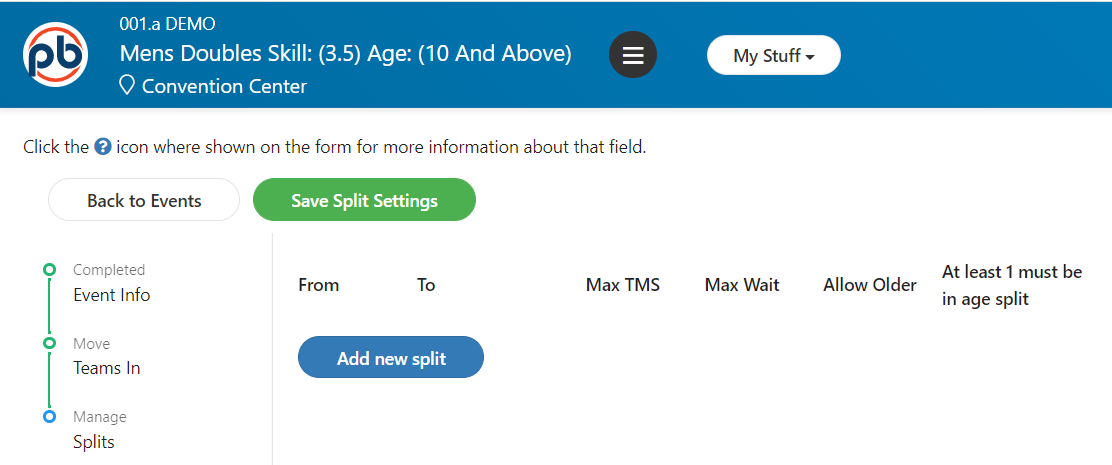

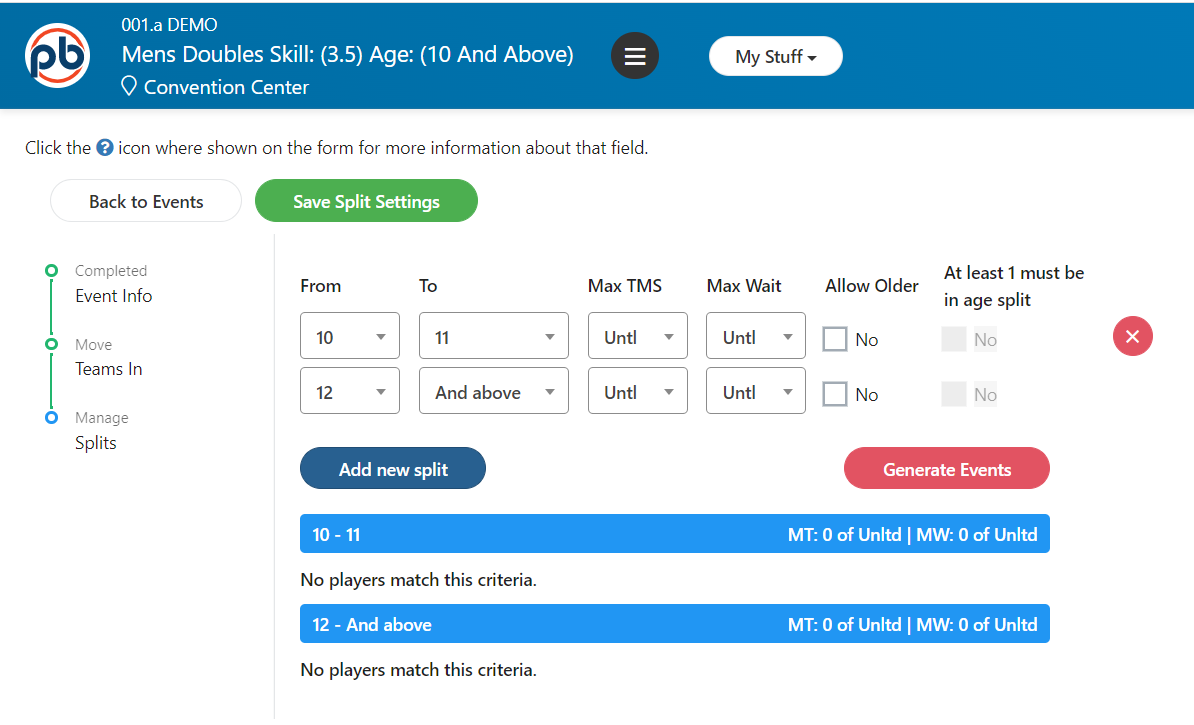
The system will add two splits to the event. The first will be a one year split starting with the minimum age for the event and the second will be all ages above that. From that point on, age ranges may be modified and more splits can be added. Notice the "max TMS" which means the maximum amount of teams allowed in that bracket as well as the maximum amount of teams allowed in the waitlist (Max Wait). You can decide if you want to allow older players to be able to be registered as well as deciding if one MUST be in the age split or not. Make sure to configure these settings if you have limits on your tournament registrations.
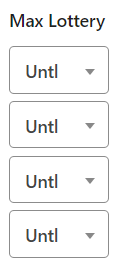
If the tournament is set up to use a lottery, there will be an extra column allowing the TD to set a maximum number of lottery registrations for each age split.
Save the created split using the Green “Save Splits” button. Do Not click on the Red “Generate Events” button until you are ready to create permanent events from the splits
Adding Additional Splits
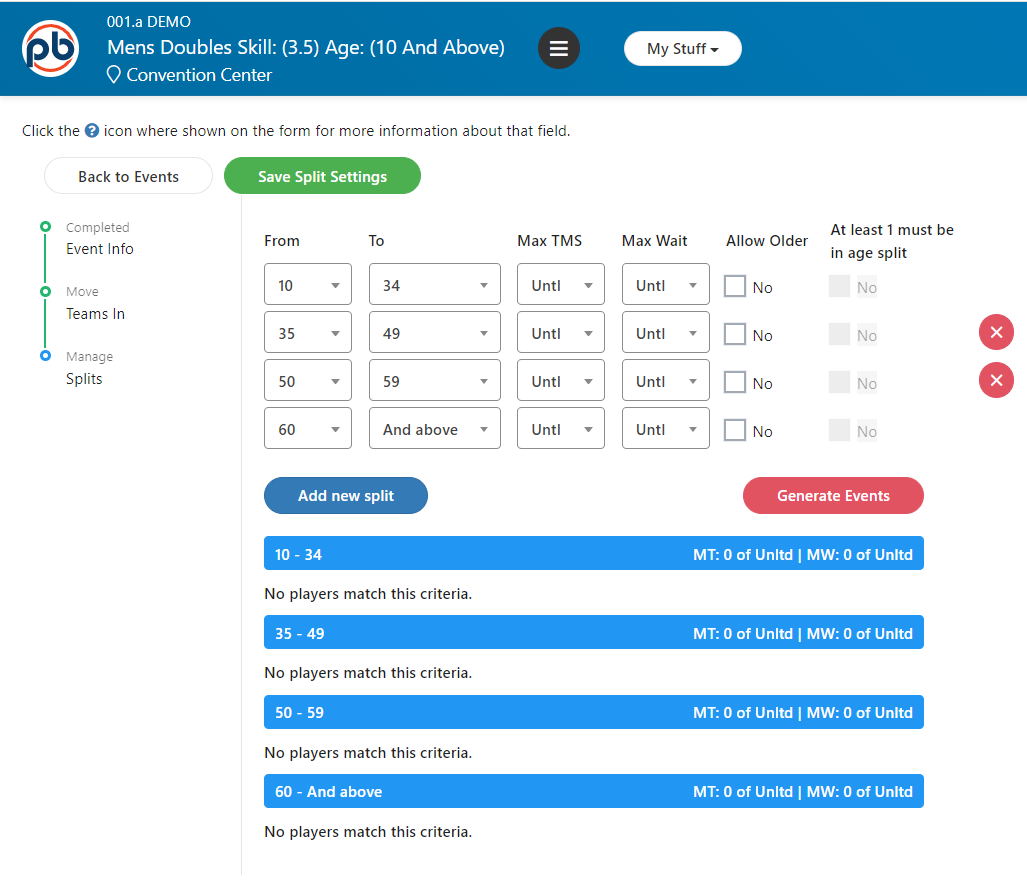
Changing the maximum age for the first split will automatically adjust the age range for the next one. Changing “And above” for the second split to an actual age, will automatically add a third split. From there, “And above” may be adjusted to an actual age to add as many splits as are needed for the event. Changing the age range for any split after that will automatically adjust the ages of the splits above and below that one. If you expand the age range of any split to encompass the entire previous or following split, the unneeded split will be automatically deleted.
Was this article helpful?
That’s Great!
Thank you for your feedback
Sorry! We couldn't be helpful
Thank you for your feedback
Feedback sent
We appreciate your effort and will try to fix the article